Effective Dated Financial Statement Reports
We deliver these report templates for an effective dated Trial Balance and Income Statement within the configuration catalog, and it's recommended to leverage this approach to migrate this into your tenant. Refer to the Configuration Catalog Guide for additional information on how to migrate these reports from Customer Central to your tenant.
You can use these report templates if you have any organizational changes throughout the year that will affect your hierarchical financial statement reporting. You can set up an effective dated report to take into account any organizational changes based on when the changes are effective within financial statements. As part of this configuration package, you'll have templates for the Income Statement and Trial Balance, but the templates can be used to make other financial statements.
Note: These reports are not recommended for use when there is:
- Change of ownership control
- Step-up acquisitions or partial divestitures.
For those cases, we recommend that you close the old company and open new companies to support the reporting. More details on this can be found within the Next Level for Adapting to Change.
Example Use Case:
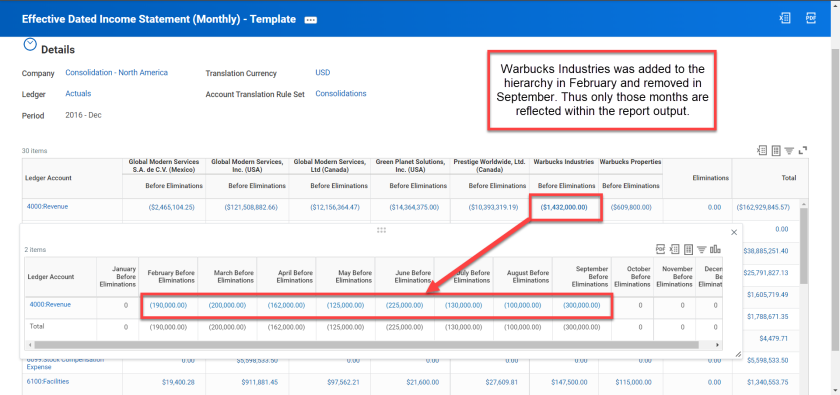
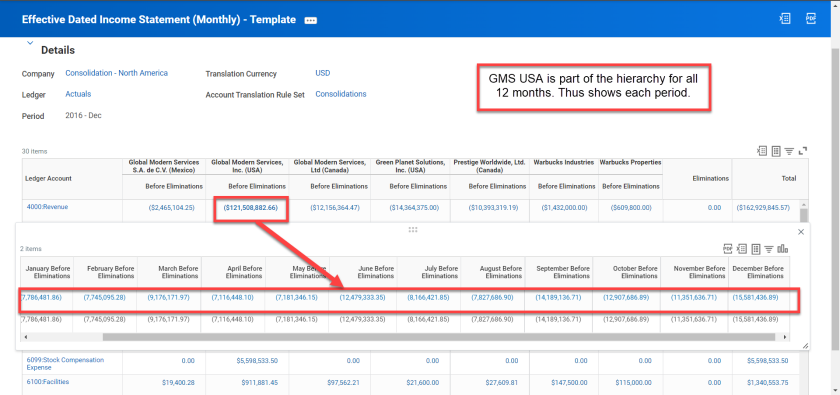
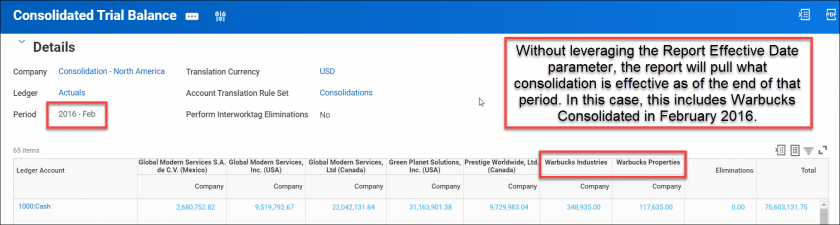
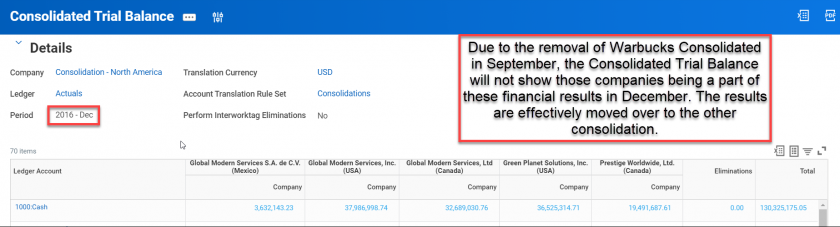
The Warbucks Consolidated company hierarchy was added to the Consolidation - US company hierarchy within GMS as of 2/1/2016. Later in September, it was determined that they should no longer be a part of this hierarchy. As part of reporting for 2016, Warbucks should still have financial results associated with the financial statement from February through September. As part of this scenario, Warbucks Consolidated's superior organization (Consolidation - US) was removed as of 9/30/2016. Below are examples of the reporting output for December 2016 of this effective dated report template output to reflect this and the Consolidated Trial Balance for comparison.
Understanding Migration Method and Process:
- Familiarize yourself with these concepts Object Transporter (OX), the Configuration Catalog in Customer Central, plus how to Migrate Configuration Catalog Content with Object Transporter.
- Verify you have a Customer Central User ID to access the Configuration Catalog and that it corresponds to the user ID in your Sandbox or Implementation tenant.
Prior to migrating report into your Sandbox or Implementation tenant you must have the following created:
- Account Set: Standard
- Account Translation Rule Set called: Standard
- Fiscal Schedule ID: YE_DEC
- Ledger Type: Actuals
- Account Set ID: Standard
- Custom Reporting Time Periods: Period_01 through Period_12
Characteristics
| Out of the Box? | You can modify these report templates per the details listed below to make the desired effective dated financial statements. | |
| Technology | Composite Report and Matrix Sub Report | |
| Functional Area | Financial Accounting | |
| WD Version | Tested on 2023R1 | |
| Complexity | Medium | |
| Prerequisites (also called out in the Configuration Package Description) | Account Set: Standard Account Translation Rule Set called: Standard Fiscal Schedule ID: YE_DEC Ledger Type: Actuals Account Set ID: Standard Custom Reporting Time Periods: Period_01 through Period_12 | |
Customer Central Package
The Customer Central package listed above ties to the name of the Configuration Catalog package where the corresponding reports are located. Once loaded into your tenant, you can find the reports in the table below using a Report Tag that matches the Customer Central name or simply by searching for the custom report. The Prerequisites listed below are the security domains needed to be able to run the report. For more reports within the package, see RPT Consolidations.
| Custom Report | Data Source and Data Source Filter | Prerequisites |
| Effective Dated Income Statement (Monthly) - Template | Journal Lines for Financial Reporting Journal Lines for Company and Reporting Time Period | Reports: Financial Accounting |
| Effective Dated Trial Balance (Monthly) - Template | Journal Lines for Financial Reporting Journal Lines for Company and Reporting Time Period | Reports: Financial Accounting |
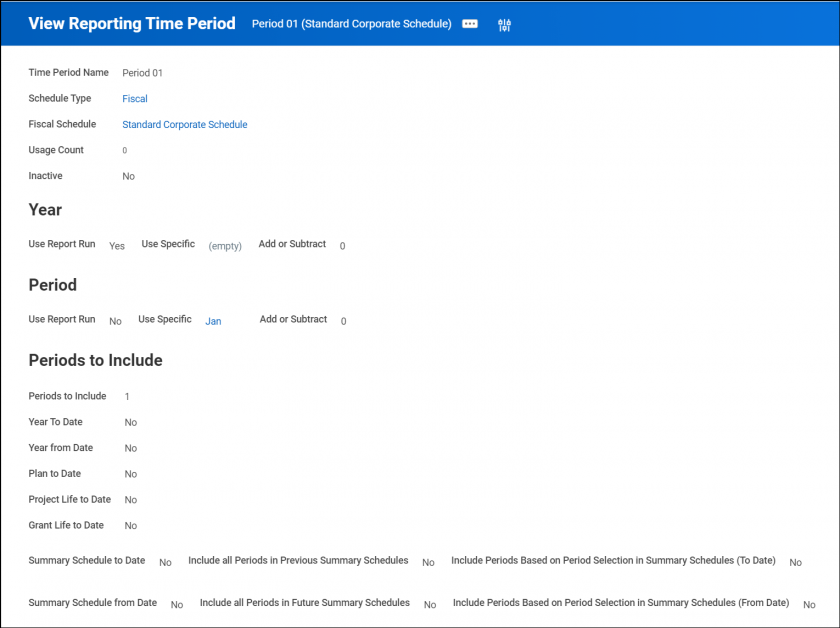
Create custom reporting time periods for each period within the year. Below is an example of 1 period as it relates to the fiscal schedule with year-end in December (also known as January). Workday populates the amounts as they relate to that 1 period and will help drive some of the effective dating in the composite's columns.
For the report migration from Customer Central, you'll need to setup your custom reporting time periods with the reference IDs of Period_01, Period_02, through Period_12. The period referenced can be whichever period you specify to be the associated with that time period. For example, year-end in December's Period 01 would be January (as displayed below), but year-end in March's Period 01 would be April.
Additional Information
Suggested Updates to Fit Your Use Case
Once you've successfully created or migrated the reports using Customer Central, you can follow the suggested setup steps listed below to update the templates to create the desired financial statements:
Specify ledger accounts to use:
- Option 1: Leveraging Row Lookups
- (Optional) Add in Outline Structure for ledger accounts on the report's general section and within the control field column. This allows for ledger account summaries to be used within the lookups and allows you to have rolled-up ledger accounts.
- Remove the Total and Combine Data rows
- Add Lookup rows and choose the ledger accounts or ledger account summaries you'd like
- Option 2: Leveraging Ledger Accounts and Summaries reporting prompt parameters
- Update the sub report's hidden Ledger Account and Summaries prompts to either be:
- Unhidden so as to be available in each column of the composite report. Note: This will require updating every column to include the desired ledger accounts and summaries or to map it to be a prompted value.
- Default specified to what you'd like filtered down to. Note: If going this route, and other variations of this report are needed, then additional copies of this report will be needed based on those defaults (for example, Net Income vs Balance Sheet).
- Update the sub report's hidden Ledger Account and Summaries prompts to either be:
Update sign orientation for amounts:
- This is useful for Net Income reports in having Revenue reflected as positive and Expense as negative. By default the report's columns are Debit minus Credit. In order to update this, you can look to either:
- Reverse the sign through the row options. Note: this won’t update the drill-down's sign.
- Update the column's field to aggregate to be Credit minus Debit.
Trial Balance - Current Year Retained Earnings:
- To avoid double-counting with Net Income and the Current Year Retained Earnings account, it's recommended to utilize the Excluded Balance Sheet Account prompt.
- This prompt can have the default value included and the prompt hidden by updating the template.
- This prompt can be removed, hidden, or ignored for Balance Sheet versions of this template.
Effective Dated Financial Statement Monthly Template
- Filename
- Effective_Dated_Financial_Statement_(Monthly)_-_Template.xlsx
- Size
- 48 KB
- Format
- application/vnd.openxmlformats-officedocument.spreadsheetml.sheet
Effective Dated Financial Statement - Extra Details
- Filename
- Effiective Dated Financial Statement - Extra Details.pdf
- Size
- 397 KB
- Format
- application/pdf
Effective Dated Income Statement Monthly Template
- Filename
- Effective_Dated_Income_Statement_(Monthly)_-_Template.xlsx
- Size
- 48 KB
- Format
- application/vnd.openxmlformats-officedocument.spreadsheetml.sheet
Effective Dated Trial Balance Monthly Template
- Filename
- Effective_Dated_Trial_Balance_(Monthly)_-_Template_1.xlsx
- Size
- 53 KB
- Format
- application/vnd.openxmlformats-officedocument.spreadsheetml.sheet