Journal Status (Close Hub)
The Journal Status (Close Hub) report supports the period close process by providing a clear overview of journal statuses for a company or company hierarchy. This report enables finance users to efficiently track journals by source and status, enabling a smoother and more transparent period-end close. Use the attached report definition to build the report in your tenant. This report will be available within the Configuration Catalog at a later date.
As a Finance Executive, Accounting Manager, or Financial Analyst involved in the period close, I need to monitor the status of various journals. This report is particularly valuable within the Close and Consolidation Hub, providing a centralized view of journal progression across multiple entities. Running this report enables me to quickly identify bottlenecks, track progress across different companies or journal sources, and ensure that all journals are processed appropriately before I'm able to close the books. I can also see counts of companies associated with journals in different statuses and gain more detailed information.
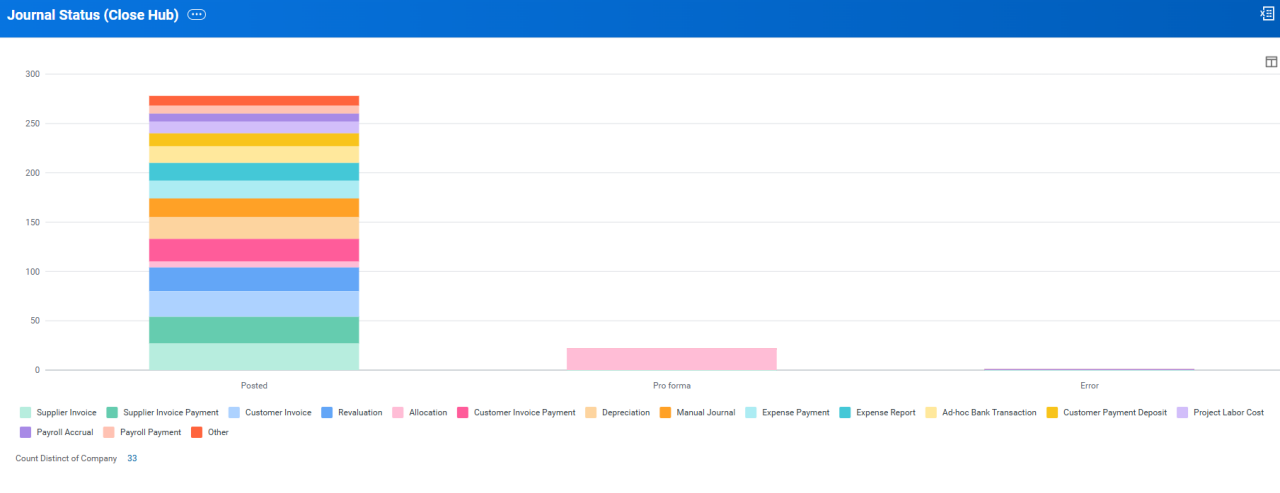
The Journal Status (Close Hub) report provides a clear, summarized view of journal activity crucial for the financial close. The report dynamically displays these journals, visually organizing them by Journal Source. These journals are represented as different colored segments within each bar on the chart, and by Journal Status, which forms the main column groupings seen as distinct bars. This structure enables quick assessment of where journals stand in their lifecycle across various sources and their current processing state.
The core summarization of the report is a Count Distinct of Companies associated with the journals. This summarization quantifies the number of unique companies involved for each journal status and source combination, which provides a high-level overview of company engagement at different stages of journal processing. The Posted bar clearly depicts the distinct count of companies with posted journals, broken down by the various journal sources. Users can then sort from these summarized counts or chart segments into a more granular view. This detailed perspective includes fields such as Company, Book Code, Period, Journal, and any related Operational Transaction for the Journal, offering a comprehensive audit trail. To ensure that the report focuses on relevant, active journals, it's designed to automatically filter out any journals that have a Canceled status. This helps maintain clarity and relevance in the presented data, streamlining the review process during the critical period-end close.
Below is a sample of the report output:
Design Considerations
Count Distinct Summarization: The report uses Count Distinct on the Company field, formatted as #,##0. This allows the summarization to occur at the company or company hierarchy for the visualization.
Prompts:
Company: The company prompt displays company, company hierarchy, or consolidation group. This is a required prompt.
Details
Out of the Box?
Yes. You can modify this report template per the details listed below to make the desired output.
Technology
Matrix Report
Functional Area
Financial Accounting
Customer Central Package
Coming soon
WD Version
Tested on 2025R1
Complexity
Low
How do I get this?
Prerequisites (also called out in the Configuration Package Description)
Ensure that Journal Sources are configured.
Relevant company, book code, and accounting period setup
Custom Report
Journal Status (Close Hub)
Data Source and Data Source Filter
Data Source: Journals
Data Source Filter: Journal Filter by Accounting Date
- Primary Business Object: Journal Entry
Once you've successfully created or migrated the reports using Customer Central, you can follow the suggested setup steps listed below to update the report based on the desired report output:
Prompts:
Company: When configuring this report for the Close and Consolidation Hub, it's recommended to set the default type as Specify default value and set the default value to Consolidation Group. Then, select do not prompt at runtime. This is a required prompt.
Accounting Date On or After: When configuring this report for the Close and Consolidation Hub, it's recommended to set the default type as Determine default value at runtime and set the default value to Fiscal Period Start Date Then, select do not prompt at runtime.
Accounting Date On or Before: When configuring this report for the Close and Consolidation Hub, it's recommended to set the default type as Determine default value at runtime and set the default value to Fiscal Period End Date Then, select do not prompt at runtime.
Book, Journal Entry Status, Ledger Accounts, and Summaries: These prompts have no default values. When configuring this report for the Close and Consolidation Hub, it's recommended to select do not prompt at runtime.
Additional changes:
Column Headers and Groupings can be updated based on user preference.
Formatting can be updated based on how the user would like to be alerted.
You can enable the report for use on a Dashboard by configuring the Worklet options on the Output tab.
Journal Status (Close Hub) Report
- Filename
- Journal_Status_(Close_Hub).xlsx
- Size
- 15 KB
- Format
- application/vnd.openxmlformats-officedocument.spreadsheetml.sheet