Quarterly Cash Flow Support and Indirect Cash Flow Statement
We provide the Quarterly Cash Flow Support - Template to assist you in creating an indirect cash flow statement and accompanying support. This report is available in the Configuration Catalog and can be migrated to your tenant through customer central. Refer to the Configuration Catalog Guide for additional information on how to migrate this report from Customer Central to your tenant.
The Quarterly Cash Flow Support - Template, once properly updated with the appropriate configuration for the tenant, allows you to validate what account summaries the changes in cash flow came from. After updating this report, a copy of it can be made to build an Indirect Cash Flow Statement from.
In addition to updating the report configuration, transactions must be tagged with the appropriate flow codes for the report to provide accurate results. While this article includes specific instructions for configuring the report, the Cash Flow Statement Reporting article will provide guidance on using optional worktag balancing to tag transactions with the flow code worktag required to achieve the reporting.
This report is provided as a template to assist you in creating a Quarterly Cash Flow Support report. Using these templates without configuring the reports will yield inaccurate results.
The report can be run by company or company hierarchy, in any reporting currency, and any reporting book. The report will provide amounts for the Current Quarter based on the period selected in the Period prompt.
The rows for the cash flow statement can pull in or exclude activity based on a combination of ledger account, ledger account summary, and/or the flow code custom worktag.
Below is a sample of the report output. Due to the number of rows and columns, only a portion of the report is shown in the screenshot below. A PDF print of the sample that shows the full report output will be attached to this page.
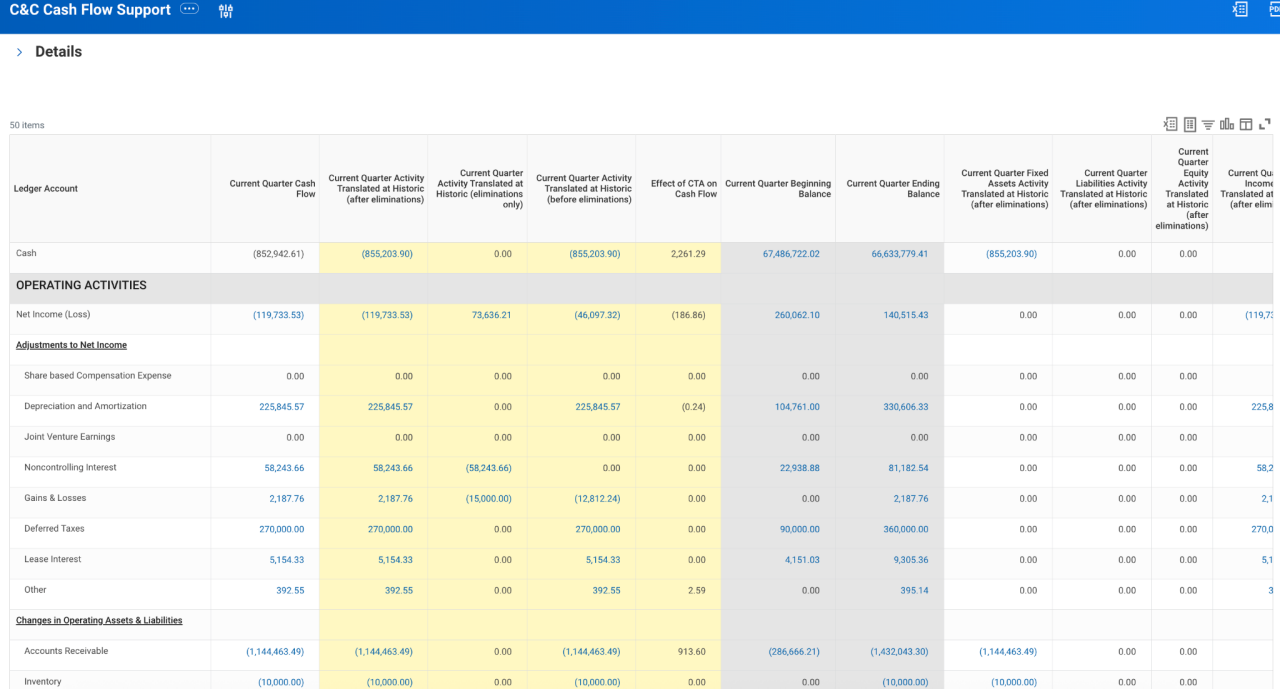
Details
Out of the Box?
You must modify this report template per the details listed below to make the desired output.
Technology
- Composite Report
- Matrix Report
Functional Area
Financial Accounting
Customer Central Package
WD Version
Tested on 2025R2
Complexity
Medium
How do I get this?
Prerequisites for Report Migration
Custom Worktag Type: Flow_Code
Once loaded into the tenant you can find the report by searching for it. The information listed below provides the data sources used by the report and security domains needed to be able to run the report.
Data Source and Data Source Filter
- Journal Lines for Financial Reporting
- Journal Lines for Company and Reporting Time Period
Security Domain
Reports: Financial Accounting
Once you've successfully created or migrated the report using Customer Central, follow the setup steps below to update the report based on the desired report output. If you would like to make additional changes than those outlined below, we recommend making these updates first and then creating a copy of the report to make those additional changes to.
In addition to attaching the template report definition to this page, an example that illustrates the below updates is also attached for your reference.
Quarterly Cash Flow Support - Template
- Hierarchy Structure:
- In the report’s General settings, add a hierarchy structure for the Ledger Account business object. This allows for ledger account summaries to be used within the lookup data rows.
- Reporting Time Period:
- Create two reporting time periods. One to represent the current quarter of the fiscal schedule and one to represent the prior quarter. Refer to the Workday Administrator Guide for more information on Reporting Time Periods.
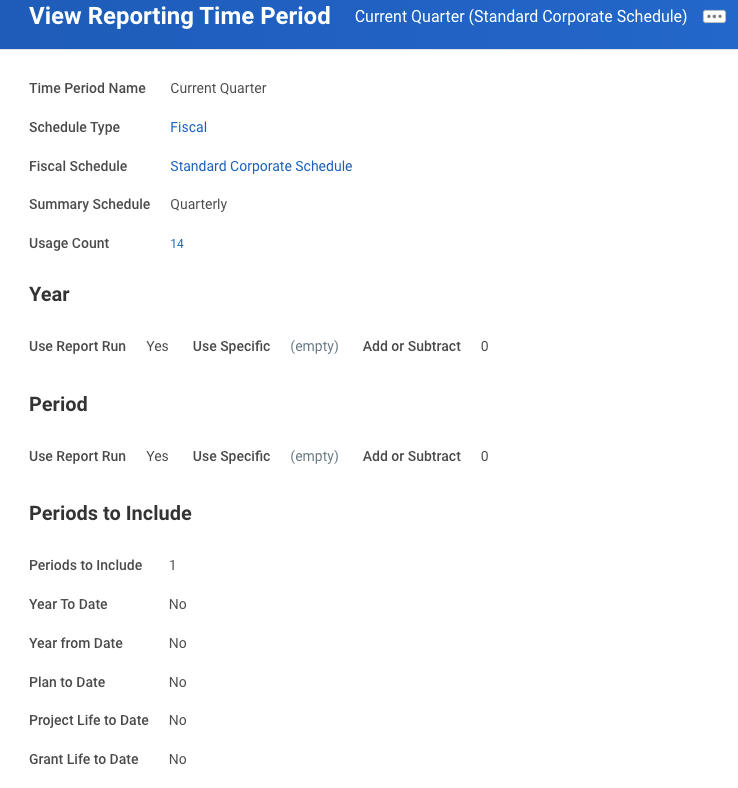
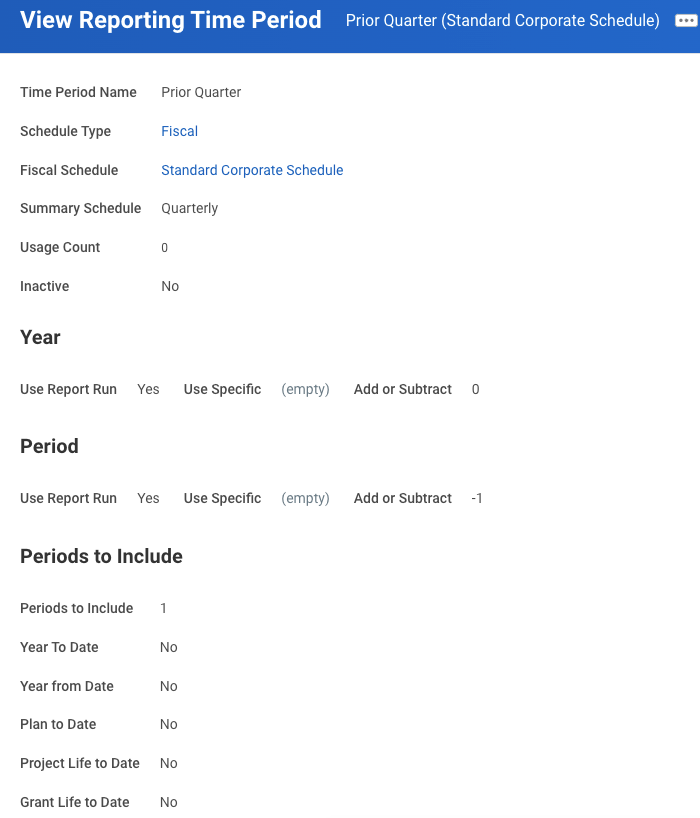
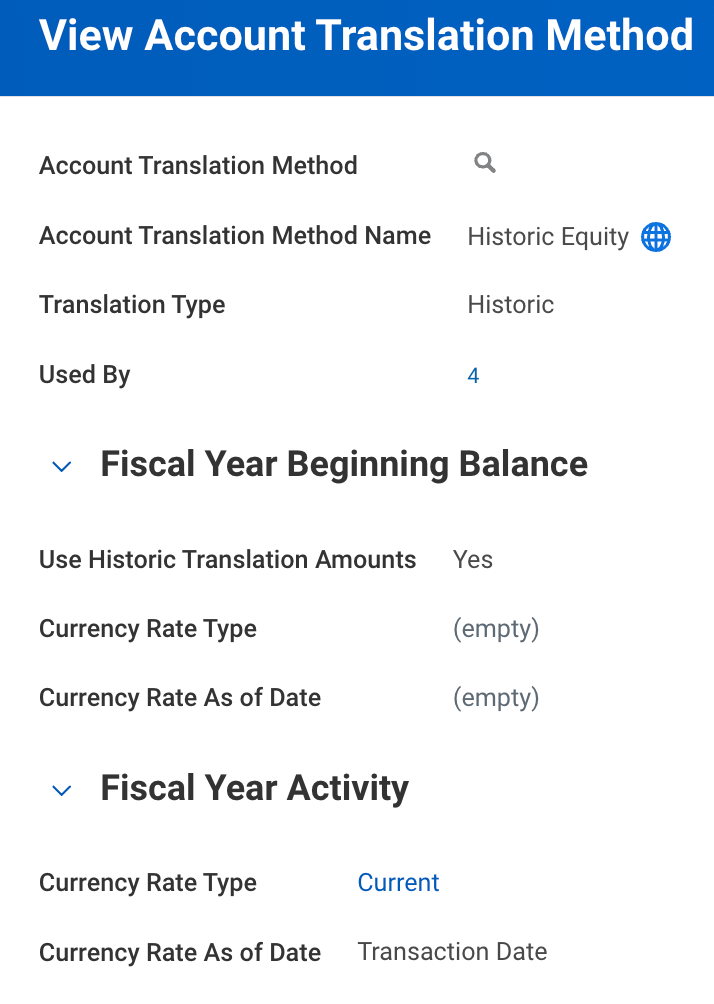
Translation Rule Set: Create an Account Translation Rule Set that translates all accounts at Historic. This allows the report to translate balance sheet amounts without CTA impacts for comparison against translated amounts with CTA impacts to produce an amount for CTA impact.
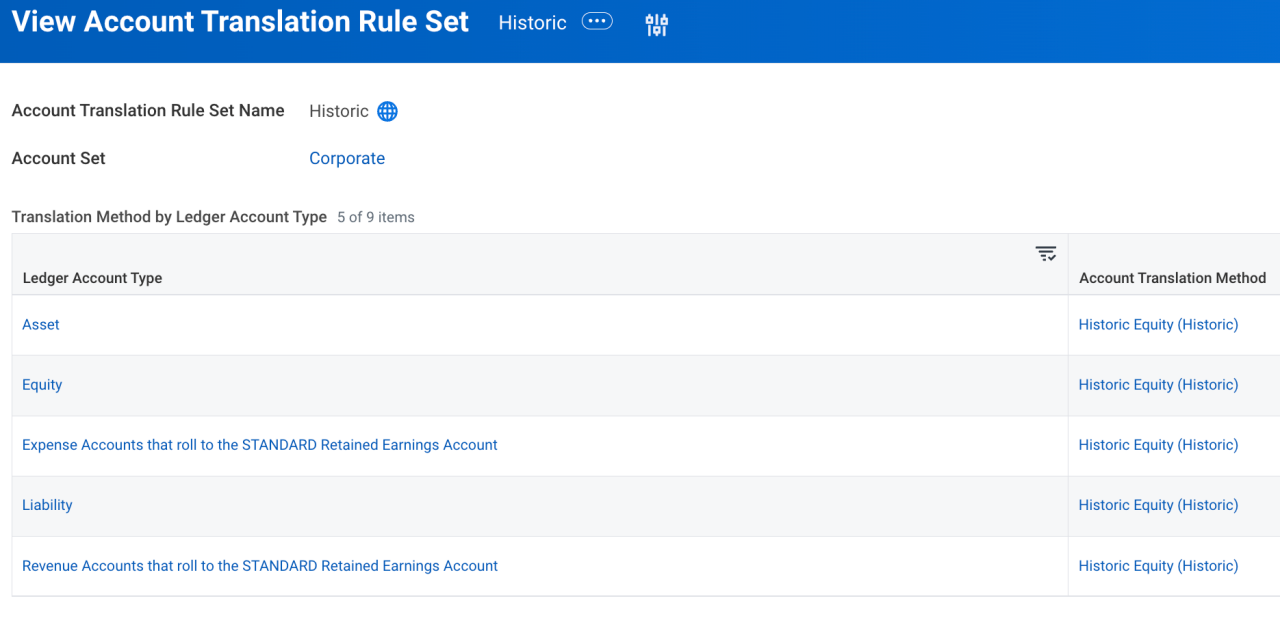
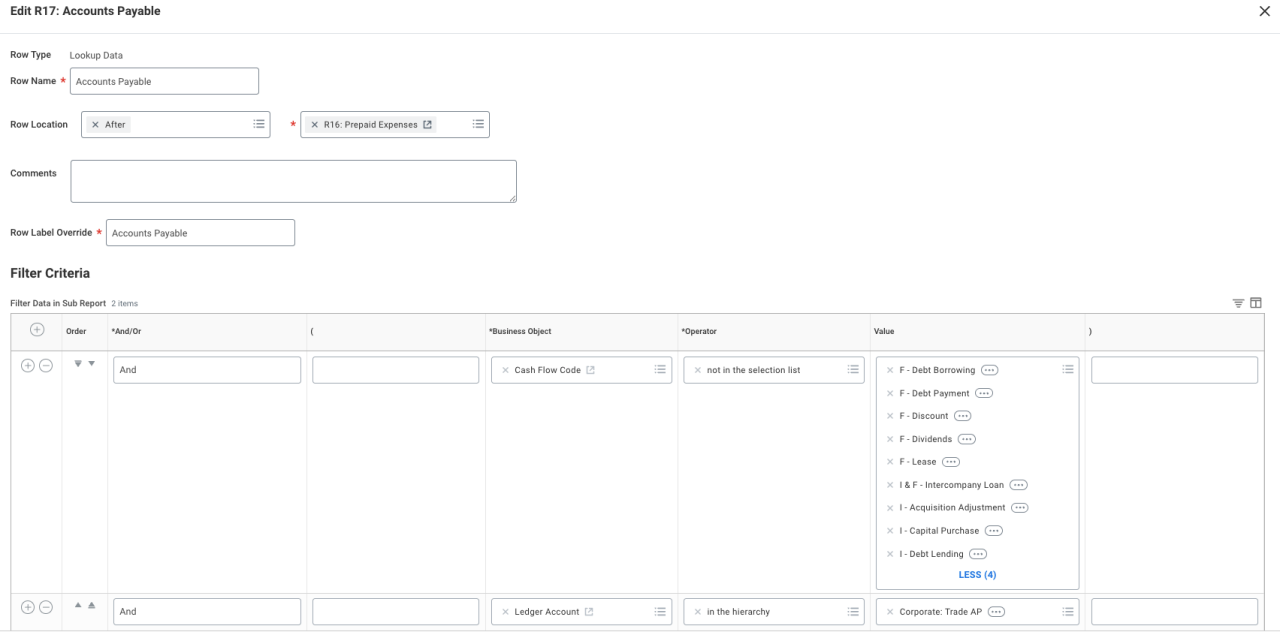
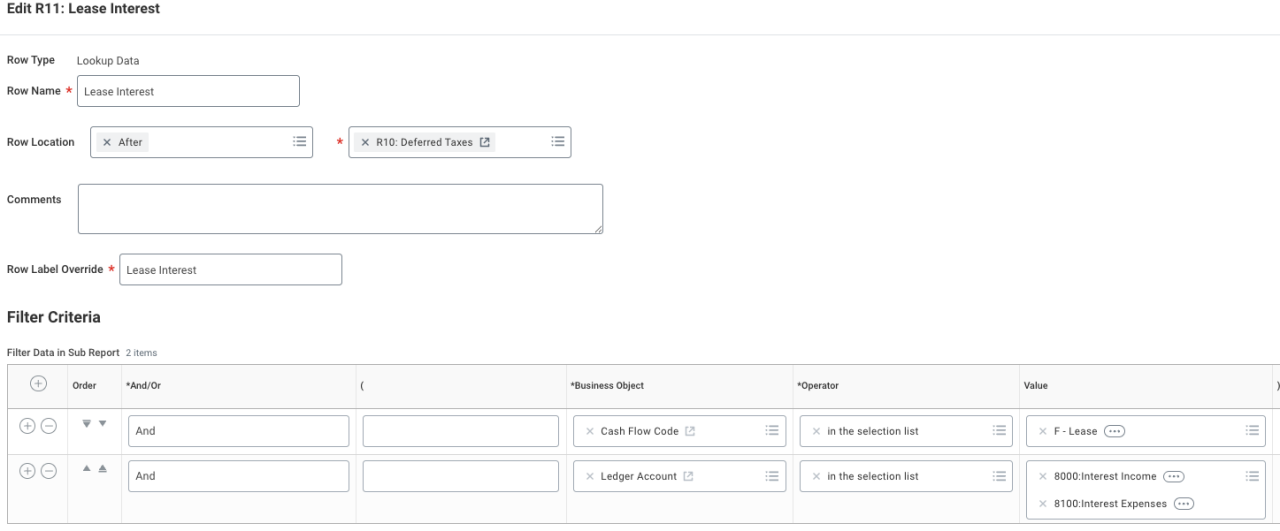
- Lookup Data Rows: Lookup data rows determine the data to display based on filter criteria. In the template version of the report, the filter criteria for all of the Lookup Data rows is set to Ledger Account = is empty. Update the rows as outlined below.
- R1, R3, R5-R12, R14-R19, R22-R29, R32-R49: Update the filter criteria to include/exclude the applicable activity based on the row name. Some rows may require only a ledger account or account summary as filter criteria, but others may require specifying or excluding specific flow codes, journal sources, or other worktags as needed.
- Data Columns: Data columns determine the data to display based on column level prompts and/or filter criteria. The following updates need to be made.
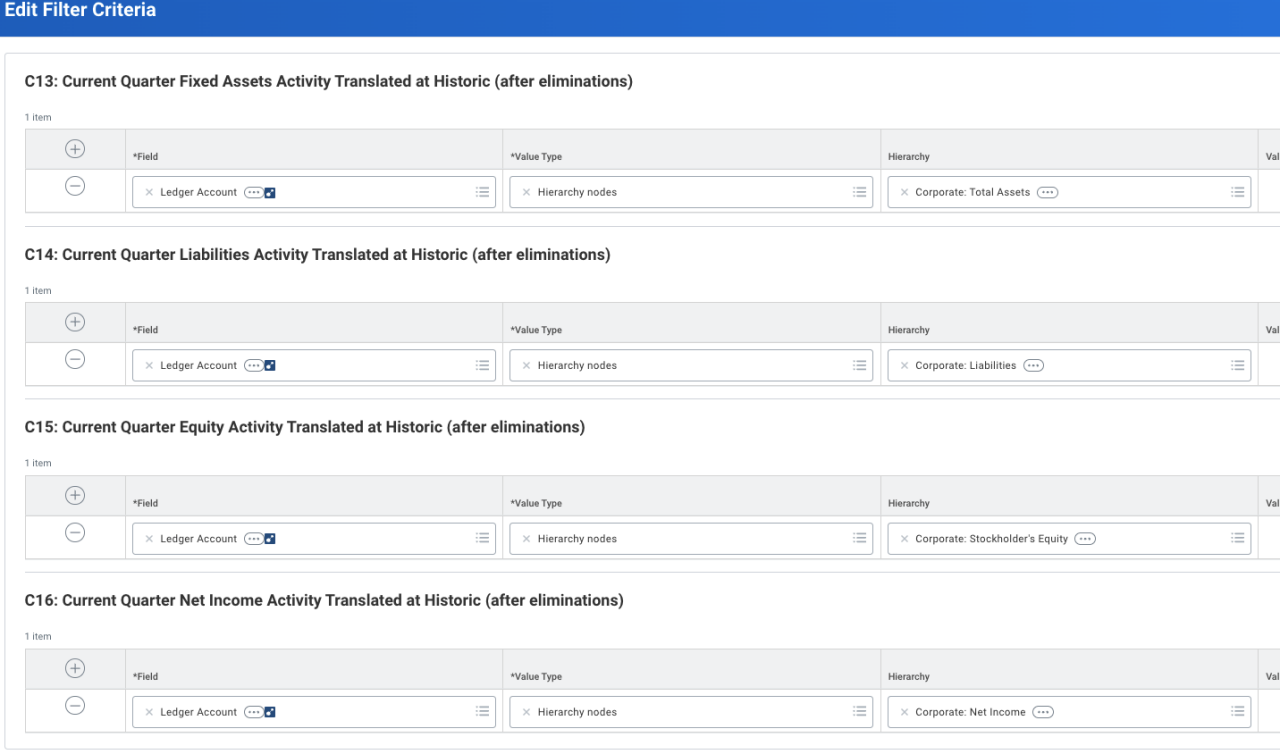
- Columns C13-C16: Add Filter Criteria to specify the applicable ledger account summary based on the name of the column.
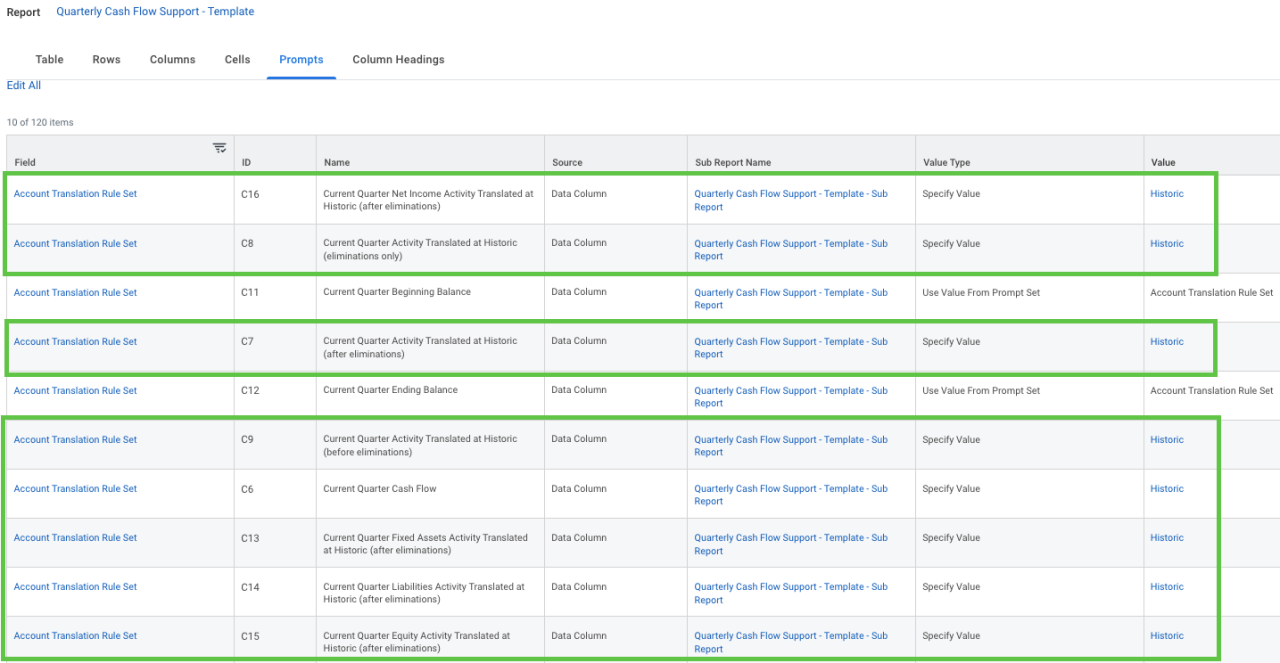
- Update the Account Translation Rule Set prompt for columns C6-C9 and C13-16 from Use Value from Prompt Set to specify a value for an Account Translation Rule Set that translates all accounts at Historic.
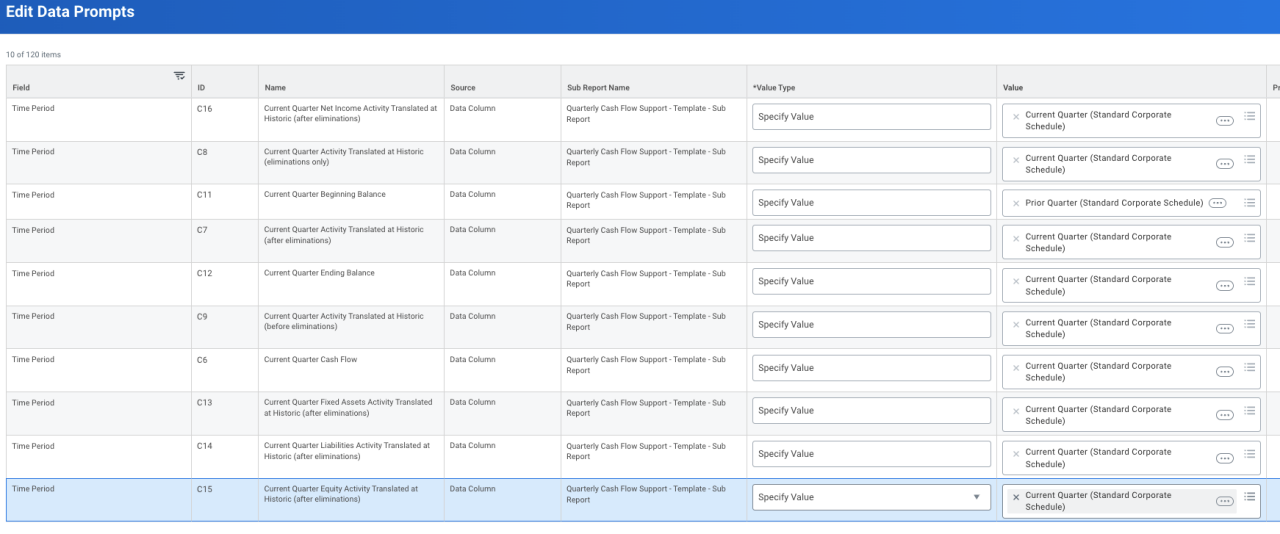
- Update the Time Period prompt for columns C6-C9 and C12-C15 from Prompt the User for Value at Run Time to specify the value of the current quarter reporting time period created.
- Update the Time Period prompt for column C11 from Prompt the User for Value at Run Time to specify the value of the prior quarter reporting time period created.
Indirect Cash Flow Statement
After making updates to the Quarterly Cash Flow Support based on your organization’s requirements and confirming the results you can use that report to create an Indirect Cash Flow Statement. Below are the steps:
- Create a copy of the updated Quarterly Cash Flow Support report. Change the name of the report to Indirect Cash Flow Statement (or your desired name).
- Hide the following columns: C7 - C12
- Delete the following columns: C13 - C16
- Create a copy of column C6 (Current Quarter Cash Flow), name the new column “Prior Quarter Cash Flow”, update the Time Period prompt to Specify Value and select the Prior Quarter time period, and move the new column to be after C12 (Current Quarter Ending Balance) hidden column.
- Create a copy of column C7, name the new column “Prior Quarter Activity Translated at Historic (after eliminations)”, update the Time Period prompt to Specify Value and select the Prior Quarter time period, move the new column to be after column C13, and hide the column.
- Create a copy of column C8, name the new column “Prior Quarter Activity Translated at Historic (eliminations only)”, update the Time Period prompt to Specify Value and select the Prior Quarter time period, move the new column to be after column C14, and hide the column.
- Create a copy of column C9, name the new column “Prior Quarter Activity Translated at Historic (before eliminations)”, update the Time Period prompt to Specify Value and select the Prior Quarter time period, move the new column to be after column C15, and hide the column.
- Create a copy of column C10, name the new column “Prior Quarter Effect of CTA on Cash Flow”, move the new column to be after column C16, and hide the column.
- Create a copy of column C11, name the new column “Prior Quarter Beginning Balance”, update the Time Period prompt to Specify Value and select the Prior Quarter time period, move the new column to be after column C17, and hide the column.
- Create a copy of column C12, name the new column “Prior Quarter Ending Balance”, update the Time Period prompt to Specify Value and select the Prior Quarter time period, move the new column to be after column C18, and hide the column.
- Edit the formula in column C17 to be “Difference([C19],Sum([C14],[C18]))”.
Extra Changes:
- If a row is not applicable to your organization, it may be hidden/removed.
- Additional lookup data rows may be added as needed by your organization.
- You can enable the report for use on a Dashboard by configuring the Worklet options on the Output tab.
- Formatting such as number formats, borders, etc. can be updated based on preference.
- You may choose to default some of the prompt values for your users.
- Update the Prompt Instructions to remove the default instructions provided.
- In the Composite Report Settings under Additional Info, update the Comments and Brief Description sections.
Cash Flow Support Example Report Definition
- Filename
- Cash Flow Support Example Report Definition.pdf
- Size
- 427 KB
- Format
- application/pdf
Cash Flow Support Example Report Definition
- Filename
- Cash Flow Support Example Report Definition.xlsx
- Size
- 43 KB
- Format
- application/vnd.openxmlformats-officedocument.spreadsheetml.sheet
Cash Flow Support Example Report Output
- Filename
- Cash Flow Support Example Report Output.pdf
- Size
- 108 KB
- Format
- application/pdf
Indirect Cash Flow Example Report Definition
- Filename
- Indirect Cash Flow Example Report Definition.pdf
- Size
- 463 KB
- Format
- application/pdf
Indirect Cash Flow Example Report Definition
- Filename
- Indirect Cash Flow Example Report Definition.xlsx
- Size
- 45 KB
- Format
- application/vnd.openxmlformats-officedocument.spreadsheetml.sheet
Indirect Cash Flow Example Report Output
- Filename
- Indirect Cash Flow Example Report Output.pdf
- Size
- 98 KB
- Format
- application/pdf
Quarterly Cash Flow Support Template
- Filename
- Quarterly Cash Flow Support Template.pdf
- Size
- 403 KB
- Format
- application/pdf
Quarterly Cash Flow Support Template
- Filename
- Quarterly Cash Flow Support Template.xlsx
- Size
- 42 KB
- Format
- application/vnd.openxmlformats-officedocument.spreadsheetml.sheet