Unapproved Supplier Invoice Line Accrual Report
The Standard Unapproved Supplier Invoice Line Accrual report is designed to help you accrue for supplier invoices at period end. The information in this article provides you with tools to adjust this report to meet your business needs.
Report Specifics
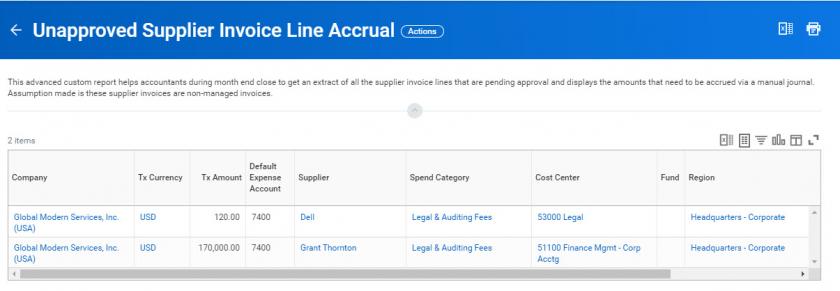
Source: The report will filter on Supplier Invoices not included in these statuses: Approved, Canceled, and Denied. At runtime, you can determine the Invoice Status to include in the report. We default the Invoice Status of In Process in the prompt, however, you have the option to also select invoices in Draft status.
The report will only include supplier invoices with Supplier Invoice Spend Type of Unmanaged, as anything under the Managed Spend Type gets accrued through the delivered Create Receipt Accrual task. It also doesn't take into account Down Payment invoices.
Accounting: The Default Expense Account field is based on maintaining the expected ledger account at the Spend Category hierarchy as text in the Description field enclosed in parentheses.
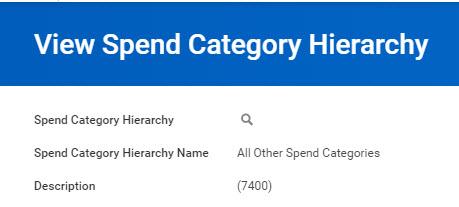
- If the default account level is too high, then include an account at the spend category level and leave the spend category hierarchy blank. Using a calculated field of Evaluate Expression, pick the spend category hierarchy default account (if not empty) or the spend category default account.
- The report doesn’t take into account a difference between depreciable assets or expense-related assets but you could adapt it if needed.
- The report doesn’t take into account capital projects (WIP account) or prepaid lines (prepaid expense account) but you could add it if needed.
- There’s no offset accrual account for the balanced journal entry. You could add this as a calculated field of Text Constant. We don’t recommend that you use the default Payables account as that would interfere with the Payables to Supplier Balances Reconciliation.
- Alternative Solution can use the Ledger Account Posting Rule Detail report referred to in this Contributed Solution.
- You can find this report within the Configuration Catalog or WDSetup.
- Use this report to look at the Spend Posting Rule and the spend category mapping to ledger account to determine the resulting account for the journal entry.
Worktags: Configure the additional columns for worktags to ensure that the accrual journal entry includes all applicable and required worktags.
Report Usage
Manual Journal Entry: Use the report as described above and create a manual journal entry at the end of each period to properly accrue for the supplier invoices. The journal entry should be reversing.
Contributed Solution to Derive the Ledger Account: Use the Ledger Account Posting Rule Detail report as described in the Alternate Solution to run lookups off of the spend category used to determine the resulting ledger account to use. Since this report is an advanced report, you can enable it either for webservice or worksheets to help with some of this automation.
Studio Integration: You can enable the advanced report as a webservice and use it in a Studio Integration to automate the creation of the journal entry each period. Refer to Custom Report to Journal Debit and Credit Boomerang for extra details on setting this up.
Accounting Center: You can use the webservice enabled advanced report as an ingestion source for Accounting Center.
- Add a field to the report, which returns the accounting date. Example: use Last Day of Last Month.
- Create a Base Dataset from the Custom Report. Add a field, which converts the Currency field type (Tx_Amount) to Numeric.
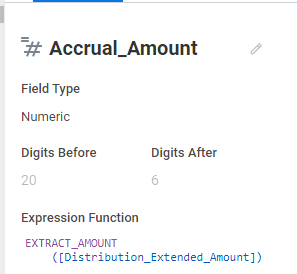
Consider these additional transformations on the BDS:
- Add a field that provides a row count.
- Filter out amounts <> 0.
- Manage fields to exclude the Currency type field.
Create a table for the Accounting Source ingestion source. Ensure that the fields in the table are consistent with the fields in the BDS so that the mapping in the data change task is accurate.
Journal Header Configuration: You can use the instance for the line company for the company in the journal header. Make the journal reverse.
Journal Line Configuration:
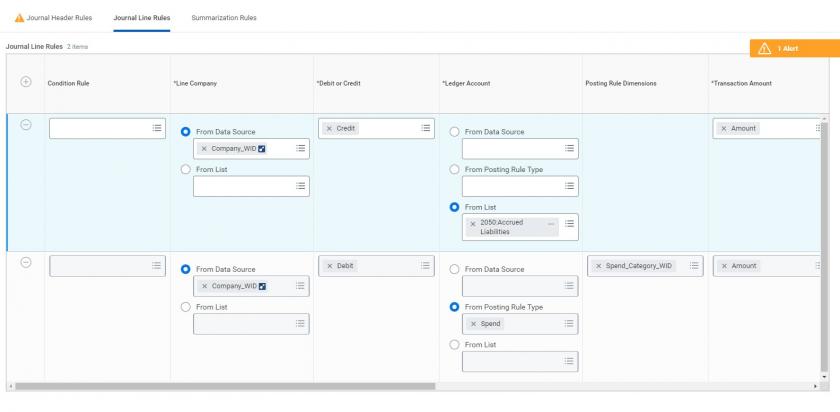

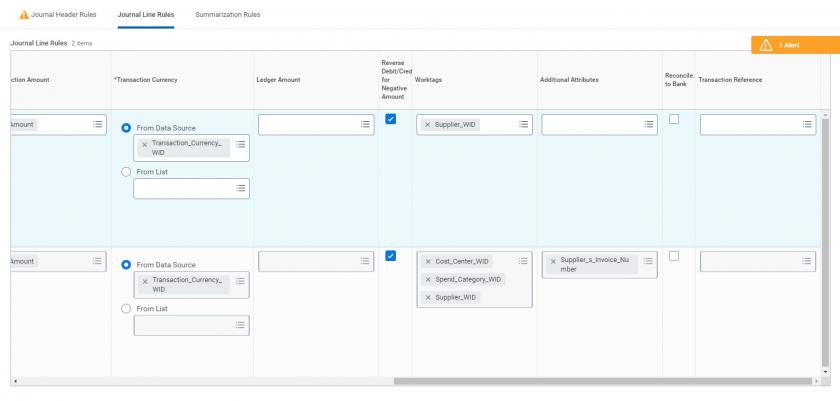
Unapproved Supplier Invoice Line Accrual Report Journal Line 1

- Filename
- Journal Line 1.jpg
- Size
- 107 KB
- Format
- image/jpeg
Unapproved Supplier Invoice Line Accrual Report Journal Line 2

- Filename
- Journal Line 2.jpg
- Size
- 25 KB
- Format
- image/jpeg