Strategic Sourcing Data Importer: Design Notes and Information
This guide contains detailed information on key data import functions available in Strategic Sourcing. With the import tools, you can create new suppliers, projects, contracts, and commodity codes and update existing data in Strategic Sourcing.
- Detailed Steps to use the Data Importer are available in our Strategic Sourcing Workday Administrator Guide.
- Validation Rules required for import are also included in the Strategic Sourcing Workday Administrator Guide.
If not already enabled, request to enable the Data Importer feature flag by submitting a customer care case in Workday Community for Strategic Sourcing Instance Management and select the Enable Feature option. Once enabled, Company admins see a Data Importer selection option under the Navigate button in Strategic Sourcing.
- We recommend testing the data importer functionality in your organization’s Strategic Sourcing Sandbox account before updating data in Production.
- We always recommend conducting a test import on a subset of data to ensure that data reflects accurately once imported into Strategic Sourcing. There's no way to revert data changes made to existing records using import. New records created using import can be manually deleted by a Company Admin once they are in the system.
Below are example visuals of how the various datasets should be structured. Don't delete columns, columns can be left blank if there are no values to provide.
Below is an example of the expected format of Supplier Data in the template:
- Note: When importing multiple contacts for a supplier, list each contact in a separate row.

Below is an example of the expected format of Project Data in the template:

Below is an example of the expected format of Contract Data in the template:

Below is an example of the expected format of the Supplier Data in the Project/Contract template:

Below is an example of the expected format of the Savings Data in the Projects template:

Below is an example of the expected format of the Milestone Data in the Project/Contract template:

Below is an example of the expected format of the Stakeholder Data in the Project/Contract template:

Below is an example of the expected format of Commodity code Data in the Project/Contract template:

Adding Attachments to Project and Contract Records
- You can use the import tool to automatically add files into the Attachments section of Contracts and Projects.
- For each relevant record, denote the attachment name/folder name the attachment is located in, in the Attachments column of the Excel file.
- Once the Excel has been uploaded, on the Data Editor page, click to Upload Attachments. This reveals a window in which you can upload a single .zip file containing all documents and folders. After uploading, click to Start Validation.
The attachment files need to be prepared and mapped accordingly under the Attachments column:
- Name in Attachments field must be an exact match to the file/folder imported alongside it.
- Each Folder Name needs to be unique, and each singular attachment file.
- No single attachment file can be over 5GB in size.
- 1 document or Folder (if multiple docs for a single record) per record line
For records with a single attachment file, we can prepare this in 2 ways:
- Add File Name + File Extension into Attachments cell aligned with corresponding record. Example: filename1234.pdf.
- Add Folder Name with single attachment file included within the folder into Attachments field aligned with corresponding record.
For records with multiple attachment files, there’s only 1 way to prepare this:
- Add Folder Name with multiple attachment files included within the folder into Attachments field aligned with corresponding record.
Note for Zip Files: Some programs use proprietary algorithms to create Zip archives, which might not be compatible with Strategic Sourcing. This is particularly true for archives created using Microsoft Windows Explorer (for more information, visit Microsoft's FAQ). Strategic Sourcing supports archives created with most other popular tools, including but not limited to 7-Zip (free and open-source), PeaZip (free and open-source), WinRAR, WinZip, Bandizip, and MacOS Finder.
See screenshot example below of a .zip file folder structure and how it should be entered in the Excel file.
Single .zip file containing all attachments to be included with import.
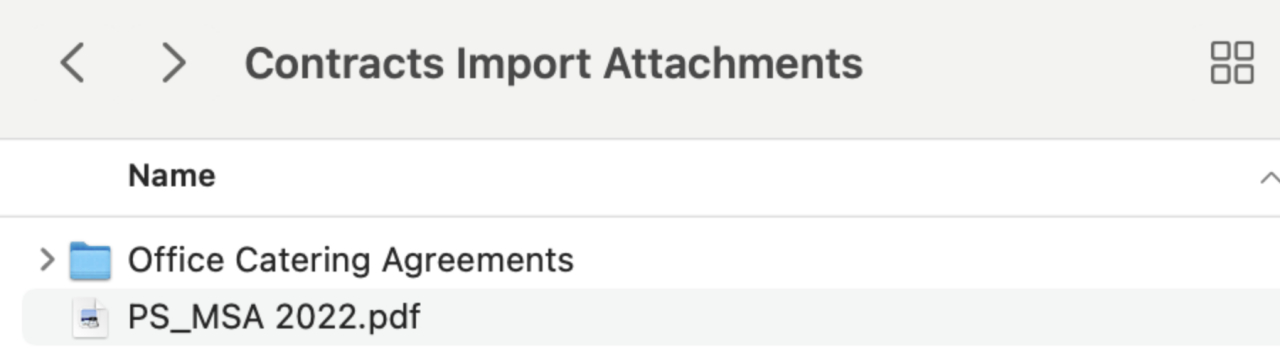
Should be labeled like the example in the Excel file below.

Errors and Troubleshooting
- WSS highlights rows with detected errors in red on the data table. Scroll through the columns to see the specific errors. When you click the red cell of a column, a window displays the error that occurred.
- To address errors, you can directly edit the Excel file or click Update Data to export an Excel file. This export lists errors in a Validation Errors column in each tab that contains data.
- After Uploading your Excel data and clicking Process File, you receive the Analyzing Data spinning wheel for longer than 1 minute: Confirm that the Company Settings haven't changed since the template was initially downloaded. If Company Settings (project or contract types, custom fields) for the dataset you're attempting to upload have changed, you'll need to download a new template. Download the new template, input data and attempt to reupload.