Strategic Sourcing Reporting Overview
This page provides an overview of the Reporting capabilities in Workday Strategic Sourcing (WSS) highlighting the ability to:
- Report on multiple different datasets within WSS.
- Connect reporting data to PowerBI and Tableau.
- Connect savings data to Workday Discovery Boards.
Several resources are provided including what you can and can’t do, recommendations, a slide deck for training Company Admins and Sourcing Managers under Files, and a video walkthrough.
Recommendations for Using Reporting
- Share reports with relevant Teams and all Company Admins.
- Company Admins and Sourcing Managers can create their own saved reports and share them with others. Once a report is shared with a Company Admin, they can edit and save changes to the report.
- For Stakeholders to view Reports, a Company Admin must add them to a Read-Only team and then share relevant saved reports with the Read-Only team.
- The end of the walkthrough video explains some commonly saved reports that customers you might want to build and save.
- Company Admins and Sourcing Managers can report on any data they can view in Strategic Sourcing.
- Data can’t be combined across datasets in Strategic Sourcing. If you want to combine data points across different datasets, we recommend doing this using Strategic Sourcing’s PowerBI or Tableau connectors.
- When building chart visualizations, it’s recommended to create a pivot chart first showing the data you wish to see, then convert to a visualization if preferred.
- Use the Editor button to add or remove data points that you want to have in your view. This point is also where you can remove the Date, Month, and Year columns for dates if needed.
- For manipulating large datasets, it can be helpful to filter down to a single record to build an initial report. Once the report looks how you’d like, you can remove the filter to include all records.
Strategic Sourcing Reporting Overview Customer Guide: Reporting overview slide deck for training Company Admins and Sourcing Managers.
Creating Reports in Strategic Sourcing
- Under Navigate in Strategic Sourcing, select Reports.
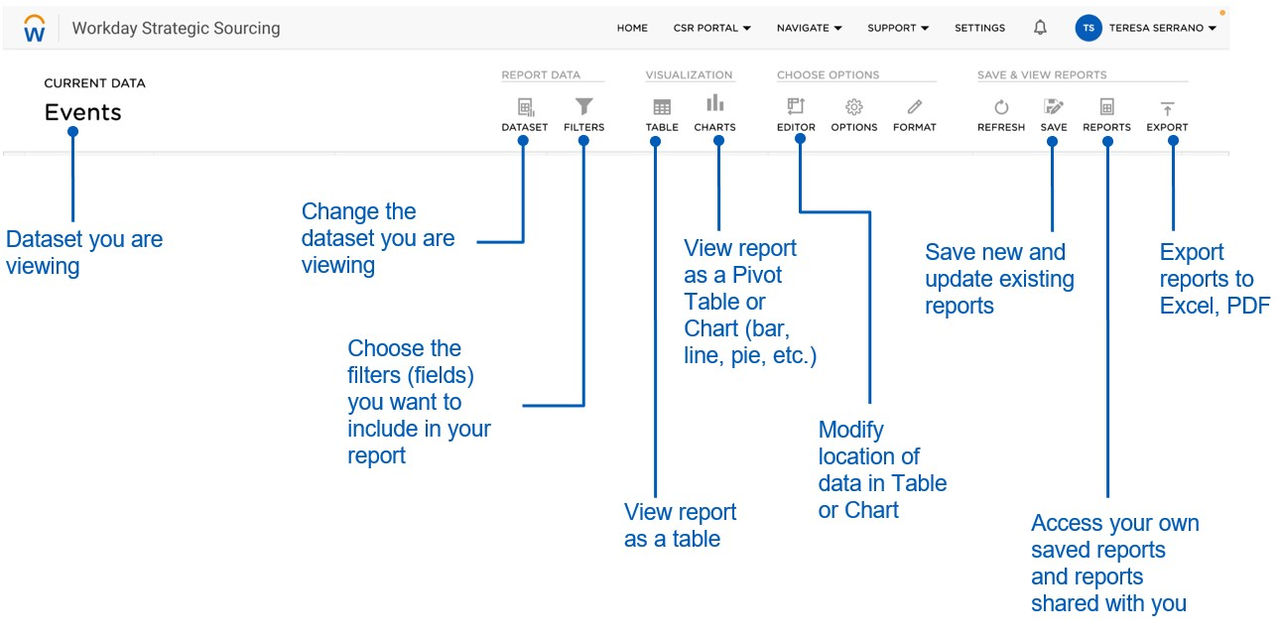
- On the Reports page, there are multiple functions available on the toolbar.
- Dataset: Select which data that you wish to view in the report.
- Filters: Select which data points are visible in the report. Tip: First select Uncheck All Filters, then select the fields you want to view.
- Table: Sets the view to display all data in a table format. Each record is a row and data about that record is in columns.
- Charts: Create pivot tables and chart visualizations directly in WSS.
- Editor: Select which data points in the report are visible in your view, change the order of columns, or create calculated fields.
- Options: Make layout changes to the data.
- Format: Make formatting changes to the data. Example: Change decimal places displayed on the Savings Report.
- Refresh: Changes made to reports automatically refresh the report but you can use this button to refresh the page and data shown.
- Save: Save new or update existing saved reports.
- Reports: Access previously saved reports and reports shared with you.
- Export: Export data out of Reporting into multiple formats.
Strategic Sourcing Reporting Overview Customer Guide
- Filename
- Strategic Sourcing Reporting Overview_Customer Guide.pptx
- Size
- 1 MB
- Format
- application/vnd.openxmlformats-officedocument.presentationml.presentation