Strategic Sourcing Performance Reviews Guide
This article and attached tool is for company administrators as they work to deploy Workday Strategic Sourcing (WSS) Performance Review functionality. Supplier Management customers can use Performance Reviews in WSS to evaluate their suppliers.
Company administrators can edit performance reviews, which are run from a Pipeline Project. The project type is called Performance Review. After a company administrator creates a main template, a sourcing manager can select which supplier they would like to review. The sourcing manager can then select which Performance Review Template to launch to the supplier. Within the Performance Review, customers have the ability to add stakeholders, manage due dates, and communicate with suppliers, similar to sourcing events.
Deployment Decisions
When implementing Performance Reviews, there are 2 key decisions that you must make:
- What performance pillars are we evaluating all suppliers at our organization on?
- What's the recommended process and level of supplier involvement in Performance Reviews?
Performance Pillars
Company administrators must configure a Master Performance Review Template to start Performance Reviews in WSS. This Master Performance Review Template is an internal scorecard that is sent to stakeholders to evaluate a supplier’s performance. The Master Template contains configurable section headers, with the ability to add questions for every relevant section header. Section headers are set at the organization level, and any sub-templates at the organization reflect these same headers.
Customers must determine which performance pillars are reflective of their entire organization’s suppliers, regardless of supplier category, and use these on all performance reviews. Example: Many customers evaluate their suppliers on pillars such as:
- Quality of Service
- Communication
- Innovation
- Pricing
Process and Level of Supplier Involvement
There are multiple potential processes customers can decide to use for their performance reviews. We recommend standardizing on 1 process, however each individual sourcing manager has the ability to select a process for their specific review.
- Internal Scorecard Only: The Performance Review is only run with an internal scorecard to request feedback on the supplier from stakeholders. No external notification is sent to the supplier and there’s no collaboration with the supplier in WSS.
- Supplier Scorecard: Enables the supplier to answer the same questions that 's asked internally on your scorecard. Customer can then easily identify gaps in performance where a supplier rates themselves highly, but internally is rated poorly or the other way around. Clicking the Add Scorecard button on the Supplier Survey within the review initiates this process. Suppliers have no visibility into the internal scores given.
- Supplier Survey: Supplier answers questions that's different from the internal scorecard. Note: Supplier Scorecard and Supplier Survey can both be run as part of a review.
Managing Templates
Attached to this article is an example Performance Review Template. Customers can use the example as a foundation to build their performance review Scorecard and Supplier Survey.
- A Master Template must be created that contains section headers that will reflect on any Sub-Templates. Customers can also add questions to the Master Template that will reflect in all Sub-Templates when they're created. Company admins can change Section Headers on the Master Template at any time, and changes will reflect on any performance reviews created after the change is made.
- Sub-Templates can be created by company admins to reflect more specific questions for suppliers that can vary based on the services or goods suppliers provide. Often customers create category-specific templates. In the Sub-Templates, templated Supplier Surveys can also be created.
- Questions in templates can be edited on individual performance reviews by Sourcing Managers once a template has been added to a project.
Launching and Managing Live Reviews
Resources available:
- A detailed video demonstration of Performance Review functionality is available in the Product Overview video
- Includes as part of the training course: Strategic Sourcing for Administrators
- Learn on Demand (Subscription Required): Strategic Sourcing - Configure Supplier Performance Management
Follow the below steps:
- Create a Pipeline Project that is the Performance Review Project Type 1 of 2 ways: By a Sourcing Manager or received through intake, if enabled. At a minimum, add a supplier to the Project in the Suppliers section.
- Sourcing Managers and Company Admins are able to publish new Performance Reviews. In the Reviews Tab at the bottom of the project, click the New button to select the preferred template. Adding a Blank Review pulls in the Master Template.
- Make edits to the review, and add the relevant stakeholders that will be asked to evaluate and publish. If you’re including the supplier in the review, the Supplier Survey will need to be published separately from the scorecard.
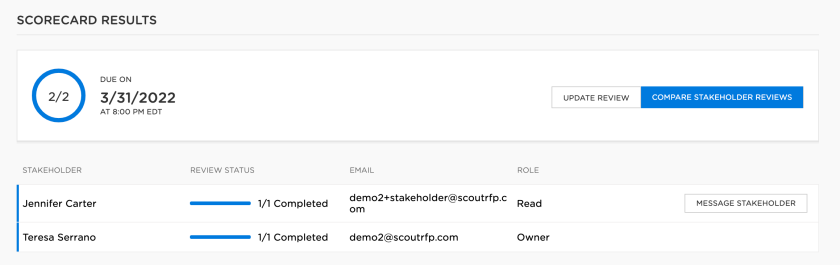
- The Results section under Reviews displays the status of stakeholder and supplier responses. Exact scorecard details can be accessed by clicking the Compare Stakeholder Reviews button.
Action Items
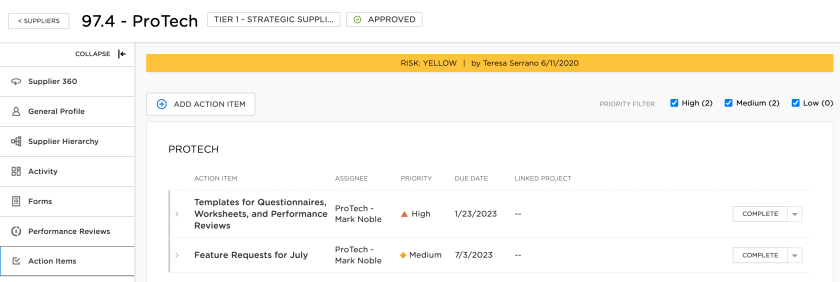
Separate from running a review for a supplier, WSS has functionality on supplier profiles that enables customers to track and manage supplier Action Items. Action Items are most commonly used after a performance review to track remediation steps both internally and externally. Licensed users can create Action Items on the supplier profile with details and a due date, and assign actions to both the supplier and internal users responsible for next steps.
Example Performance Review Scorecard and Supplier Questionnaire
- Filename
- Example_Performance Review Scorecard and Supplier Questionnaire.xlsx
- Size
- 11 KB
- Format
- application/vnd.openxmlformats-officedocument.spreadsheetml.sheet